Multi-Monitor, Clipboard Sync, and Chat: The Ergonomics of Long Remote Sessions
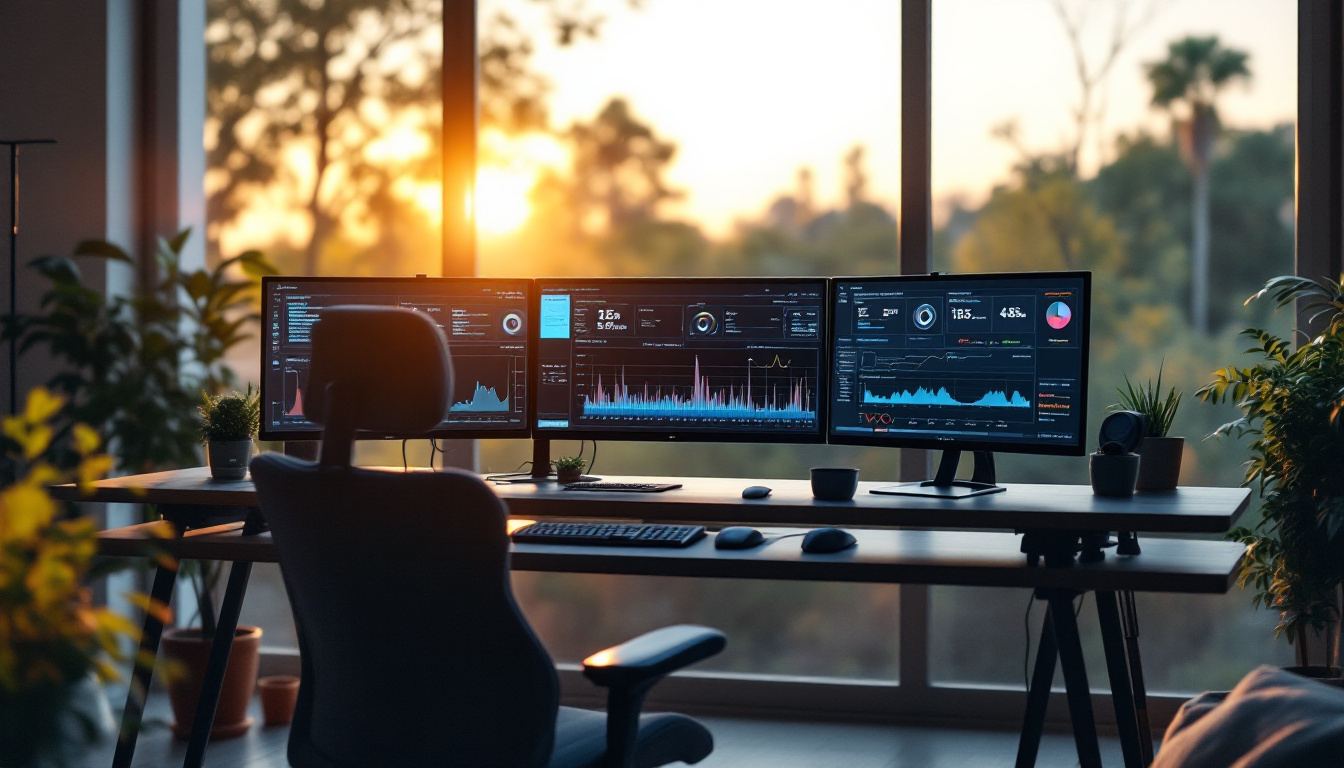
The unglamorous features that decide whether a two-hour remote diagnostic session is productive or miserable — multi-monitor handling, clipboard sync, in-session chat — and how to set up for long work.
Multi-Monitor, Clipboard Sync, and Chat: The Ergonomics of Long Remote Sessions
TL;DR
Remote-tool marketing sells codecs and speed; remote-tool misery is almost always ergonomic: the second monitor you can't see, the VIN retyped wrong, the instruction garbled over the phone, the reference PDF fighting the session for one laptop screen. This post is about the unglamorous features — multi-monitor handling, clipboard sync, in-session chat — that decide whether a two-hour diagnostic session feels like desk work or like surgery through a letterbox. All three ship in IgniteRemote's single plan; the setup advice applies to any tool honest enough to include them.
Long sessions are the real workload
The quick fix — connect, click, done — barely notices its tooling. The sessions that earn remote work its keep are the long ones: the home-office diagnostic that walks a no-start over an hour, the station maintenance evening, the training session where a senior tech supervises a junior through a first solo job. At that duration, friction compounds. A three-second annoyance that happens forty times is two minutes of pure irritation — and irritated people make transcription errors on exactly the strings that matter.
Ergonomics is not comfort for its own sake; it is error rate and endurance.
Multi-monitor: both directions of the problem
The remote machine has several screens. Diagnostic stations often do — live data here, scan tool there. A session that can only show one, or mashes them into a smear, forces you to work half-blind. What you want: see any monitor, switch cleanly, or view them arranged — so the station's real working layout survives the trip.
Your side has several screens. The bigger win. Put the session full-screen on your best display and your reference on the second: service information, wiring diagrams, the vendor's install guide, the procedure steps from the last time someone did this job. The alternative — alt-tabbing between session and PDF on one laptop panel — is where long sessions go to die.
The humble setup that outperforms expensive ones: session on the main monitor, references on the side screen, notes wherever you like. It is desk work; give it a desk.
Clipboard sync: the seventeen-character argument
The case for synced clipboards is one string long: a VIN. Seventeen characters, mixed alphanumeric, consequences if wrong. Remote work is a parade of such strings — part numbers, license keys, error codes, file paths, phone numbers — and every one either crosses the boundary by copy-paste or gets retyped by a tired human.
Copy on the station, paste into your lookup; copy the license key from your email, paste into the station's installer. Dozens of times per session, invisible when present, maddening when absent. It also quietly feeds the file-transfer workflows: half of "move this to the station" moments are actually "move this text" moments, and the clipboard is the zero-ceremony channel for them.
One discipline note: clipboards carry whatever you copied — including passwords from a manager. Treat the synced clipboard as part of the session (it is), which on a recorded, audited session is precisely the accountable place for such strings to travel.
Chat: precision that survives, in the record
Phone and chat are complements, not rivals. The phone carries reasoning and rapport; chat carries precision: type exactly this, the code is P0301, download from this URL. Spoken, those degrade — B and P, zero and O, the URL read out twice and still wrong. Typed, they arrive exactly and can be copy-pasted onward (see above).
The second property is subtler: in-session chat lives inside the recorded session. When a question later arises about what was instructed versus what was done, the instruction trail and the action trail are the same artifact — one more way the recording and audit layers turn disputes into lookups. Guidance given by phone evaporates; guidance given in chat is part of the record.
The long-session setup, as a checklist
| Element | The point |
|---|---|
| Session full-screen on your best monitor | Stop squinting at a windowed shop desktop |
| References on a second screen | Service info beside, not behind, the work |
| Wired or strong Wi-Fi on your side | Stability outranks speed for hours-long work |
| Clipboard sync confirmed before starting | Test with one string, save forty retypes |
| Chat open beside the phone line | Precision channel ready when strings appear |
| Session recording on | The long session is exactly the one worth replaying |
And the connection footnote that governs everything: adaptive quality (IgniteRemote's sessions are built for LTE-and-hotspot conditions) keeps weak links usable, but for planned long work, take the ten seconds to sit somewhere with real signal. Ergonomics can't outrun a link that drops every twenty minutes — the latency guide explains why stability beats headline speed.
Where this sits in the product
Multi-monitor support, clipboard synchronization and in-session chat are included in IgniteRemote's one plan — $24.90/month or $249/year, unlimited computers and technicians (pricing) — running in browser-delivered sessions (architecture) with recording and audit logging around them. No tiers to unlock comfort, because gated ergonomics just taxes your longest sessions. Standing note: USB passthrough remains in development, included when it launches; everything above ships now.
The measure of good session ergonomics is that nobody mentions them: the two-hour diagnostic ends, the notes are made, and the tooling was invisible. That invisibility is the feature.