Diagnostic Remote Session: What It Actually Means in Auto Repair
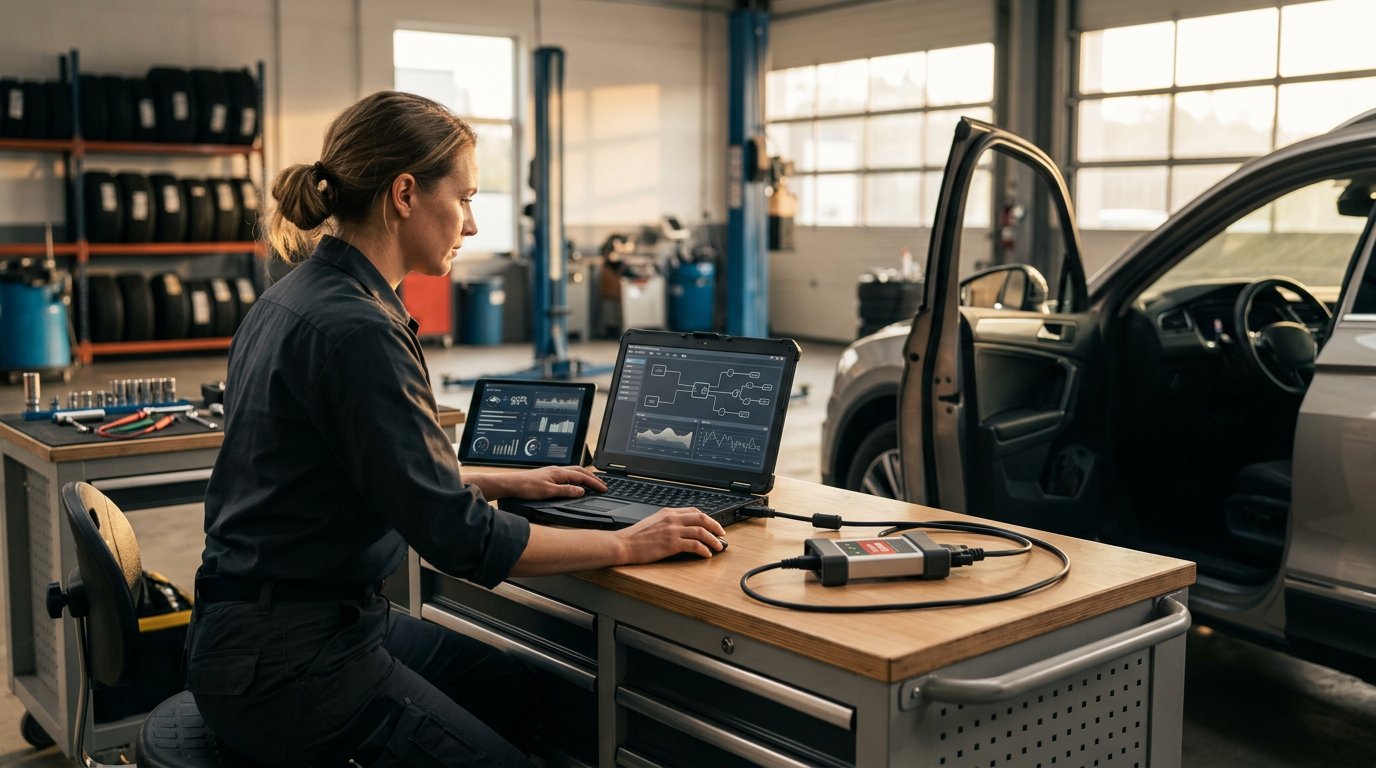
A diagnostic remote session connects a technician's software to a vehicle's diagnostic tool from anywhere, enabling real-time fault code reading and module…
Diagnostic Remote Session: What It Actually Means in Auto Repair
TL;DR: What Diagnostic Remote Session Actually Means in Auto Repair
A diagnostic remote session is a live connection between a technician at their desk and a diagnostic tool plugged into a vehicle somewhere else—across town or across the country. The technician's OEM diagnostic software (Ford FDRS, GM Techline Connect, Toyota Techstream, BMW ISTA) sees the remote pass-thru device as if it were plugged into their own laptop, pulling fault codes, reading live data, and programming modules without the tool or the vehicle ever moving.
This is not screen sharing where someone talks you through the steps. It is direct control: the expert runs the software themselves, the tool responds in real time, and the shop avoids a second trip, an overnight OEM subscription renewal, or a tow truck. When the job finishes, both sides have a complete recording of every fault code, VIN, part number, and programming decision made during the session—documentation that matters for warranty claims, dispute resolution, and training new hires.
This article explains how diagnostic remote sessions work at the protocol level, when they become module programming (and why that changes the technical requirements), what makes a session reliable enough for shop-floor use, and when a remote session wastes more time than it saves.
What a Diagnostic Remote Session Is—and What It Replaces
A diagnostic remote session replaces the work a technician does when they drive to a vehicle, plug in a tool, run the diagnostic software, and drive back. That trip consumes one to three hours of billable time the shop cannot charge, plus fuel, plus the friction of scheduling and handoffs. Fleet maintenance pays twice: once when the technician drives to the truck yard, and again when they return.
The traditional alternative is a 2-day OEM software pass (roughly $80 for Toyota TIS, more for others) or an annual subscription that runs $75 to $2,500 per brand per year. Those subscriptions add up fast for shops that work across multiple makes, and they still require someone local who knows how to use them.
A diagnostic remote session cuts both costs. The shop plugs a J2534 pass-thru tool into the OBD-II port at the vehicle. An expert anywhere—at home, at a dealer, at a central maintenance facility—opens their OEM diagnostic software, selects the remote tool from the J2534 device picker, and works as if the vehicle were on their own lift. The software sees the remote interface as local hardware because the session is tunneling the J2534 protocol over the internet, not just sharing a screen.
This is not video of someone else's desktop with a technician narrating over speakerphone. It is direct control of the diagnostic transaction. The expert runs the software, reads the modules, interprets the fault codes, performs adaptations, and programs the ECU. The shop provides the tool and the vehicle; the expert provides the subscription and the skill.
How Remote Diagnostic Sessions Work: The Technical Path From Browser to ECU
A diagnostic remote session has two separate layers: remote desktop access to control the Windows PC running the software, and J2534 tool sharing to make the pass-thru device visible across the network.
Remote desktop is the simpler half. A browser-based session connects to a Windows 10 or 11 PC enrolled with a remote-access agent. The controlling technician clicks, types, and sees the screen in real time. IgniteRemote's remote desktop runs entirely in the browser on the controlling side—no install required—and relays screen updates, input, clipboard, and file transfers through a cloud intermediary. The shop PC runs a Windows service installed once during setup; after that, the technician can connect whether someone is logged in or not.
That service-level agent is what enables Admin Mode, the feature that lets a remote session interact with UAC prompts, Windows lock screens, and other protected surfaces that user-level remote software cannot see. Both happen because Windows presents those surfaces on protected desktops that user-level remote software cannot see. Running the agent as a Windows service from boot solves that problem. More detail on the mechanism is covered in Admin Mode in Remote Desktop: UAC Prompts, Lock Screens, and Why Sessions Fail Without It.
J2534 tool sharing is the harder problem and the one that matters for automotive work. The pass-thru tool at the shop—TOPDON RLink, Artidiag RLink X3, Drew CarDAQ-Plus 3—is plugged into the vehicle's OBD-II port and connected via USB to a Windows PC running the IgniteRemote Agent. The expert's PC, also running the Agent, runs the OEM diagnostic software. When the software scans for J2534 devices, it finds the remote tool and treats it as local hardware.
This works because the agent intercepts J2534 API calls on the expert's machine and forwards them to the shop PC, which passes the commands to the physical tool, which talks to the vehicle's CAN bus. The responses travel the reverse path. Latency matters—CAN frames expect sub-millisecond timing locally—but diagnostics are generally request-response transactions with seconds between commands, so a connection with 100 to 400 milliseconds of round-trip delay works fine for reading codes and live data.
The two sides join a tool-sharing session with a six-character token generated in the browser. The shop tech enters the token in their Agent app, the expert's Agent app connects, and the tool appears in the OEM software's device list within 10 to 30 seconds. No account setup required on the shop side.
More technical detail on the J2534 protocol path and compatibility is covered in J2534 Passthru Remote Sessions.
When a Diagnostic Remote Session Becomes Module Programming—and Why the Requirements Change
Reading fault codes over a diagnostic remote session is low-risk. The software sends a request, waits for a reply, and moves on. If the connection stalls for a second, the next request picks up where the last one left off. Module programming is different. A firmware flash writes directly to a control module's memory in a continuous stream. If the connection drops mid-write, the module may be left in an unrecoverable state—a several-hundred-dollar part now requiring replacement and a tow truck.
That risk is why module programming over a remote session requires a direct, wired-class connection. IgniteRemote measures the link quality before every module write with ten sequential probes. Programming is refused if the connection stalls for more than one second during any probe, if round-trip latency averages over 400 milliseconds, or if packet retransmissions exceed 15 percent of traffic. A relayed connection—one that bounces through a third-party server because the two endpoints cannot reach each other directly—is refused for programming no matter how fast it appears, because relay paths introduce unpredictable jitter.
Battery voltage also matters. Programming is refused if the vehicle's battery measures below 11.0 volts or above 15.5 volts. A low battery risks a mid-flash power loss; a high voltage may indicate a charging-system fault that could interrupt power. Both checks lower the risk of an interrupted write. No software can remove that risk entirely—cellular networks, hotel Wi-Fi, and VPNs all introduce variables—but these automated checks prevent the most common failure modes.
When the connection and voltage pass, the session proceeds. When they do not, the expert and the shop tech see the refusal reason in their respective apps. The fix might be as simple as starting the vehicle to raise battery voltage, switching from Wi-Fi to a wired Ethernet connection, or waiting until the shop's internet is less congested.
These checks are automatic and non-negotiable. They run before every programming operation, not once per session. A connection that was good enough ten minutes ago may not be good enough now, and the software will stop you.
What Makes a Remote Session Reliable Enough for Shop-Floor Diagnostics
Reliability in a diagnostic remote session comes down to three things: connection quality, unattended access, and the ability to interact with Windows prompts that appear during diagnostic software startup.
Connection quality is not about raw speed. A 5 Mbps uplink is plenty for remote desktop and J2534 traffic; diagnostics rarely push more than a few kilobits per second of CAN data. What matters is latency and stability. A connection that stalls unpredictably or introduces multi-second delays makes real-time work frustrating and module programming unsafe. Mobile hotspots work fine when the LTE signal is strong. Hotel Wi-Fi and congested shop networks are the usual problem.
IgniteRemote offers quality presets labeled Smooth through Ultra that the user picks before starting a session. Lowering the preset reduces screen resolution and frame rate, which helps when bandwidth is limited. The diagnostic software itself does not care—J2534 commands are tiny—but remote desktop responsiveness improves when the screen updates are not competing for bandwidth.
Unattended access means the remote session can start and control the PC even when no one is logged in, the screen is locked, or the computer just rebooted. This is critical for shop-floor work. Diagnostic software often requires Windows updates, driver installs, or reboots mid-job. If the remote-access agent cannot reconnect after a reboot without someone physically at the PC, the session is dead until the next morning.
Running the agent as a Windows service solves this. The service starts at boot, before any user logs in, and the remote session can control the desktop from that point forward. The alternative—user-level remote software—cannot see the login screen or interact with UAC prompts, so someone must be physically present to complete the login and click through permission dialogs. That defeats the point of remote access.
Admin Mode, covered earlier, is the feature that gives a remote session the ability to interact with UAC prompts and the Windows lock screen. It requires administrator permission to enable—because it grants system-level access—but once enabled, the technician controlling the session can approve driver installs, run elevated software, and work through the same prompts they would see if they were sitting at the PC.
Together, these three pieces—stable connection, unattended access, and Admin Mode—make a diagnostic remote session reliable enough that a technician can start a job at 8 a.m., leave the session running unattended during lunch, reconnect after a mid-job reboot, and finish the programming without touching the shop PC once.
Recording, Audit Trails, and Training: Why Session Documentation Matters
Every diagnostic remote session is recorded in full—if you choose to record it. IgniteRemote includes session recording and replay on every plan, but recording is opt-in per session, not automatic. When enabled, the recording captures every screen update, every input event, every fault code pulled, every VIN read, and every programming decision made. The recording can be replayed in the browser, downloaded as a video file, or analyzed for training.
Recordings matter for three reasons: dispute resolution, quality control, and training.
Dispute resolution is straightforward. A customer claims the shop programmed the wrong module or cleared codes without permission. The recording shows exactly what happened, in order, with timestamps. Warranty administrators ask what fault codes were present before the repair; the recording has them. An insurance adjuster questions whether the shop followed OEM procedures; the replay shows every step. The recording is not an interpretation or a memory—it is a frame-by-frame account of the session. More context on why this matters is in Session Recording Remote Support Auto Shops.
Quality control is less obvious but equally important. A manager replays a session and sees that the technician skipped the pre-programming battery-voltage check, selected the wrong software version, or programmed the module without completing the relearn procedure. Those are coachable moments. Without the recording, the mistake only surfaces when the customer returns with the same symptom, and by then the trail is cold.
Training is where session recordings become curriculum. A senior technician completes a difficult job—reprogramming a BMW DME after a failed update, coding a Mercedes SCN after module replacement—and the session is recorded. A junior technician watches the replay, sees the exact sequence of clicks, the software menus used, the fault codes cleared, and the follow-up checks performed. The recording becomes onboarding material.
IgniteRemote goes one step further: it generates AI-written training steps automatically from a recorded session. The system watches the replay, identifies the actions taken, and writes a step-by-step checklist that another technician can follow. The output is not perfect—some steps need human editing—but it turns one good fix into repeatable documentation without anyone writing a procedure manual. More on how this works is covered in AI Training Steps from Remote Sessions.
For tool-sharing sessions specifically, IgniteRemote decodes and logs every J2534 transaction: fault codes, VINs, part numbers, programming events. That decoded log is part of the session recording. It is not just a video of someone clicking through Ford FDRS—it is a structured record of every diagnostic command sent to the vehicle, which makes the session auditable at the protocol level.
Session audit logs—who connected, when, to which PC, and for how long—are built into the platform. Every team account includes role-based access and a session history that shows every connection made. That log is separate from session recordings; the log is always on, the recording is optional. More detail on audit requirements for compliance-sensitive work is in Remote Session Audit Logs: Accountability for Machines That Program Keys.
When a Diagnostic Remote Session Does Not Make Sense
A diagnostic remote session is not the right tool for every job. It wastes time in at least four scenarios: when the problem is physical, when the diagnostic software will not run remotely, when the connection is too unstable to trust, and when setting up the session takes longer than driving.
Physical problems cannot be diagnosed remotely. A remote session can read fault codes and live data, but it cannot hear the noise the transmission makes in third gear, smell burning oil, or see the crack in the intake manifold. If the diagnostic path requires a visual inspection, a compression test, or swapping parts to isolate the fault, the remote session adds nothing. The technician still has to be at the vehicle.
Software compatibility is the second limit. J2534 tool sharing works with OEM software that uses the J2534 standard—Ford FDRS, GM Techline Connect, Toyota Techstream, Chrysler wiTECH, VW ODIS, BMW ISTA, JLR SDD. It does not work with DoIP-only vehicles (Volvo 2016+, DoIP BMWs, Nissan CONSULT 4, Mercedes W206/W223+) because those platforms bypass the J2534 API and talk to the vehicle over Ethernet. A DoIP pass-thru device uses a network interface instead of a J2534 API, and the remote session cannot intercept that traffic. The vehicle must be reachable over standard J2534 for the tool-sharing session to function.
Some diagnostic software will not run in a remote desktop session for licensing reasons. A few OEM platforms check whether they are running in a virtualized or remote environment and refuse to start. That is rare—most OEM tools work fine—but when it happens, the only fix is running the software directly on the PC at the vehicle, which eliminates the remote session entirely.
Connection instability is the most common reason a remote session does not make sense. A shop running diagnostics over a congested LTE hotspot with 800-millisecond latency and frequent drop-outs will spend more time waiting for screen updates and re-establishing the connection than they would spend driving to the vehicle. Module programming over that connection will be refused by the pre-write checks, so the session becomes useful only for reading codes—a task that a $30 Bluetooth scanner could handle locally.
Setup time is the last consideration. If the shop has never used remote access before, enrolling the diagnostic PC, installing the agent, setting up the tool-sharing token, and walking the shop tech through the connection process might take 20 minutes the first time. For a job that would take 15 minutes on-site, the remote session is net negative. The second job is faster—the PC is already enrolled, the agent is already running—but the first session has friction.
The breakeven point depends on how far the technician would have to drive, how often they do this work, and whether they already have the remote-access infrastructure in place. A mobile programmer who drives 45 minutes each way for a single module flash breaks even on the first job. A fleet with ten trucks in a central yard might never break even, because walking to the truck takes two minutes.
FAQ: Diagnostic Remote Sessions for Auto Repair and Fleet
Can I use a diagnostic remote session over a mobile hotspot?
Yes, if the connection is stable. IgniteRemote works over LTE, mobile hotspots, and Wi-Fi. Reading fault codes and live data works fine over most cellular connections. Module programming requires the connection to pass quality checks before every write—less than 400 ms average latency, no stalls over one second, and under 15 percent retransmissions—which most strong LTE connections satisfy. Weak signal or congested networks will fail the check and refuse programming until the link improves.
Do I need the IgniteRemote agent installed on both PCs for tool sharing?
Yes. The shop PC—where the J2534 tool is plugged in—runs the Agent to share the tool. The expert's PC—where the OEM software runs—also runs the Agent to see the remote tool in its J2534 picker. Browser-based remote desktop does not require an install on the controlling side, but J2534 tool sharing does. The shop side joins with a six-character token and does not need an account.
What happens if the connection drops during module programming?
The J2534 session terminates, and the module may be left in an incomplete state depending on where the flash was interrupted. This is the same risk that exists when programming locally if the laptop battery dies or the USB cable is unplugged. That is why IgniteRemote refuses programming when the connection or battery voltage is not good enough. The pre-write checks lower the risk, but no remote software can make module programming perfectly safe over an internet link. If you cannot accept that residual risk, program the module locally.
Can I record a diagnostic session for training without the technician knowing?
Recording is opt-in per session, and both sides see when recording is active. There is no hidden or automatic recording mode. If you want a session recorded, you enable recording before starting. The recording belongs to the account that started the session, and can be replayed, downloaded, or used to generate training steps afterward. The session recording documentation covers the controls and permissions in detail.
Does a remote diagnostic session let me skip buying an OEM subscription?
No. The expert's PC must run the OEM diagnostic software under a valid subscription. IgniteRemote does not provide software licenses or subscriptions; it only shares the J2534 tool so the software sees the remote device. If the expert already has a Ford FDRS subscription, they can use it to diagnose a vehicle at a shop that does not have FDRS. The shop still needs the J2534 tool and a PC to plug it into, but they do not need their own subscription. One subscription serves multiple locations when paired with remote tool access. Pricing and plan details are at IgniteRemote Pricing Explained.
Conclusion
A diagnostic remote session is not a workaround or a compromise; it is direct control of the diagnostic tool and the software, separated by geography instead of sitting on the same bench. When the connection quality is sufficient, when the vehicle and software are compatible, and when the work is truly diagnostic rather than hands-on, a remote session eliminates the drive, the wait, and the friction of coordinating two schedules.
The technical requirements are straightforward: a J2534 pass-thru tool plugged into the vehicle at one end, a PC running OEM diagnostic software at the other, and a link stable enough to carry low-latency protocol traffic. Module programming adds the requirement for a direct, wired-class connection that passes automated quality checks before every write. Those checks refuse programming when the connection is too slow, too unstable, or relayed through a third-party server—not to frustrate the user, but because a dropped connection mid-flash is expensive.
Session recording, decoded J2534 logs, and AI-generated training steps turn each remote session into documentation that survives the job. A dispute six months later has a timestamped replay. A new hire watches how a senior technician handled a tricky reprogram. A manager reviews sessions and catches mistakes before they become comebacks.
A diagnostic remote session makes the most sense when the alternative is a drive, when the shop already has the tool and the PC, and when the expert has the subscription and the skill. It does not make sense when the problem is physical, when setup takes longer than the drive, or when the connection cannot be trusted. Knowing which scenario you are in is the difference between saving an hour and wasting one.
IgniteRemote provides browser-based remote desktop and J2534 tool sharing built specifically for this workflow. Plans start at $9.90 per month for remote access to five PCs, with tool sharing included in the $49.90 Automotive Pro+ plan or available separately at $39.90 per month. Every plan includes session recording, team accounts, and a seven-day free trial. No per-job fees, no vendor technician, no appointment scheduling. Full details at igniteremote.com/pricing.
Related reading
- Session Recording Remote Support Auto Shops
- AI Training Steps from Remote Sessions: Turning One Good Fix into Curriculum
- Session Recording for Remote Shop Support: Disputes, Training, and Proof
- Best Remote Desktop Software for Auto Repair Shops in 2026: A Buyer's Guide
- IgniteRemote vs TeamViewer for Automotive Shops: An Honest Comparison